


How to Visualize Evaluation Results in AcceleratorApp
Learn how to review evaluation results from the Application Overview and individual application files — including combined scores, filters, and exports.
Learn how to visualize evaluation results in AcceleratorApp — both from the Application Overview and from the individual application file — including how to read combined scores, filter by evaluation status, and export detailed results per evaluator.
As an Admin, you have two ways to review evaluation results: directly from the Application Overview for a high-level comparison across all applicants, or from the individual application file for a deeper look at a single candidate's evaluation.
The Application Overview shows average scores per applicant only. To see each evaluator's individual scores and answers in detail, you need to export the data.
Where to Find Evaluation Results
Click on Applications from the Home page or the top navigation menu, then select the relevant funnel and round.
Step-by-Step
1. Set Up the Application Overview for Evaluation
- Open the Applications Overview page.
- Select the funnel you want to review from the funnel dropdown.
- Set the Status filter to the round you want to evaluate (e.g. Round 1, Round 2).
- Optionally, enable the Decision needed checkbox to surface only applications where all evaluations have been completed and the application is ready for an Accept or Reject decision.
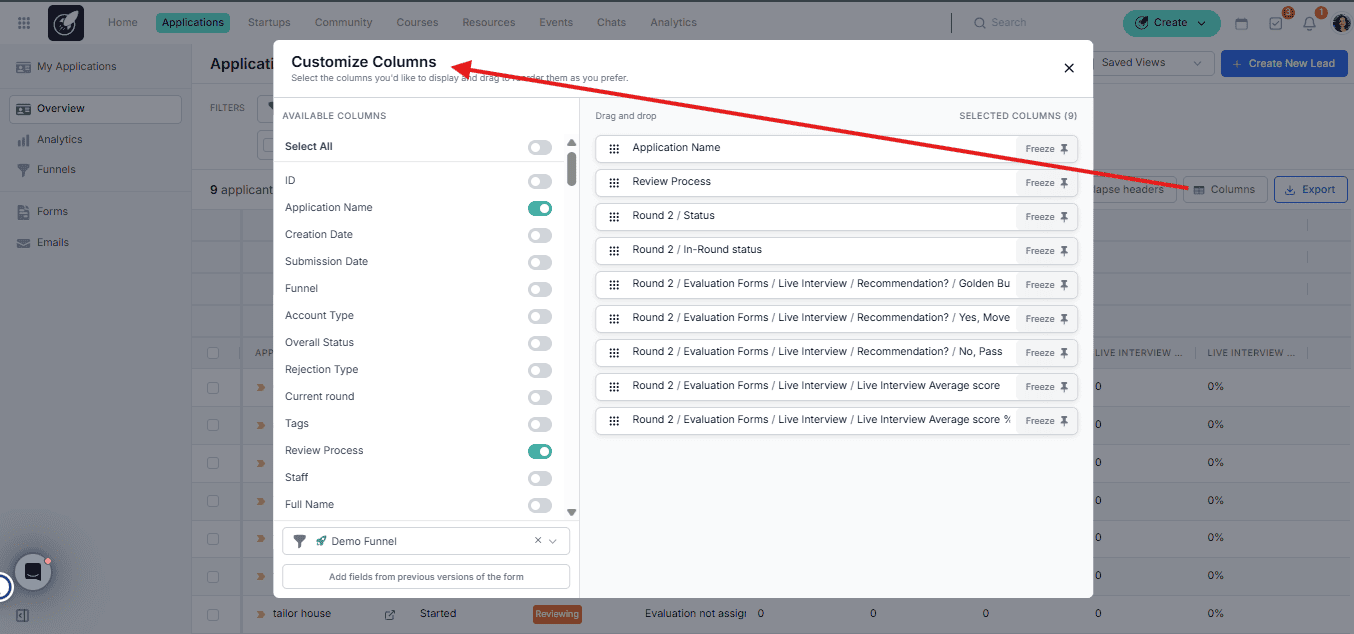
2. Configure Columns to Show Evaluation Data
Click the Columns selector and enable the following evaluation-related columns:
- Review process — Shows the current evaluation stage of the application.
- Evaluation assignees — Lists the evaluators assigned to each application.
- Evaluation completed — Number of evaluators who have submitted their evaluation.
- Evaluation pending — Number of evaluators yet to complete their evaluation.
- Evaluation forms — Links to the evaluation form responses.
- Total average score — The combined average raw score across all evaluators, calculated from scale questions and weighted multiple choice answers (if scoring was configured during form creation).
- Total average score % — The same combined score expressed as a percentage.
For evaluation form question columns, you will see expandable rows showing which option each evaluator selected for that specific question.
3. Read the Scores in the Overview
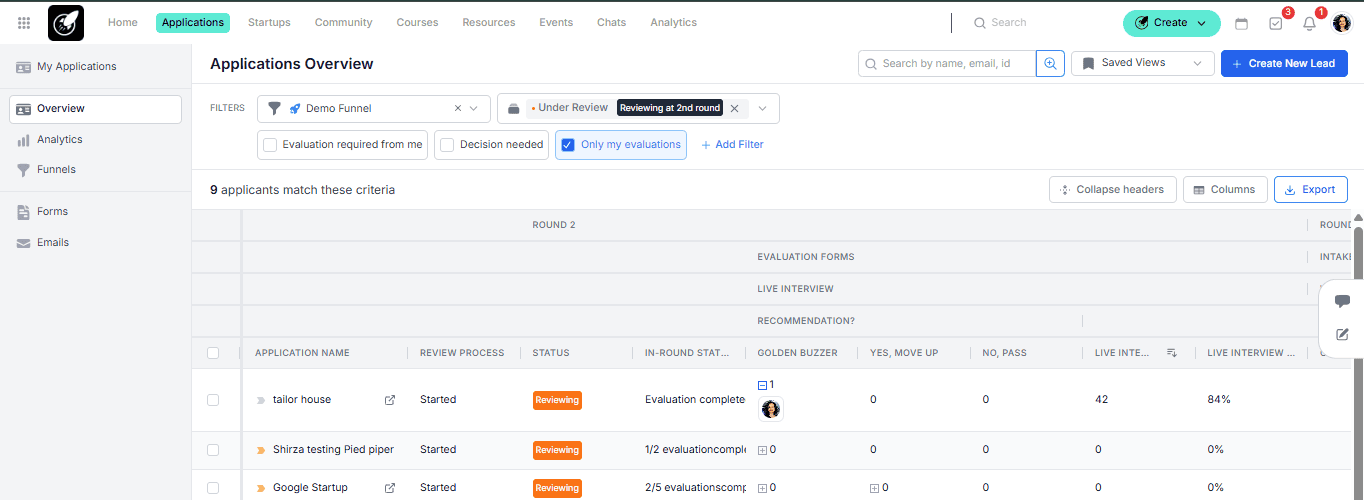
By default, all evaluation form field columns — including individual question answers and scores — display the combined average across all evaluators assigned to that application.
- The Total average score and Total average score % reflect this combined average.
- These scores take into account:
- Scale question values (numeric scores given by evaluators).
- Multiple choice question scores (if numeric weights were assigned to answer options during form construction).
To see only your own responses instead of the combined average, enable Only my evaluations in the filter bar. When active, all evaluation form field columns change to show your individual answers and scores only — excluding all other evaluators' responses. This is useful when you want to review or confirm what you specifically submitted for each applicant.
Toggle Only my evaluations off to return to the combined view across all evaluators.
4. View Results from the Individual Application File
- Click on any application to open the application file.
- Navigate to the Evaluation section.
- Here you can see each evaluator's individual answers and scores for that specific applicant — including a full breakdown by question.
The application file gives you the full per-evaluator detail that is not available in the Overview.
5. Export for Full Evaluator-Level Detail
- Apply your filters (funnel, round, and any other criteria).
- Configure your columns to include all evaluation fields you want in the report.
- Click Export.
- Retrieve the file from Export History (Profile Menu, top-right corner).
The exported report will include individual evaluator scores and answers per applicant — a level of detail not visible in the Overview table.
Best Practices
- Use Decision needed to work efficiently. This filter surfaces only the applications ready for a final call, so you are not reviewing incomplete evaluations.
- Check Total average score % for quick comparison. The percentage normalizes scores across applicants even when evaluators use different scales, making side-by-side comparison easier.
- Use Only my evaluations to verify your own submissions. Switch to this view when you need to confirm what you personally scored before a calibration session or decision meeting.
- Use the Overview for decisions, the file for context. The Overview is best for ranking and batch decisions; open the individual application file when you need to understand why a score was given.
- Export when you need evaluator accountability. The export report is the only place to see which specific evaluator gave which score — useful for calibration sessions or audit purposes.